
This post is going to investigate what’s a canary token and how we could find out, that such a token is placed on a document. We will look, how we find out if there is something like such a token attached and also what we can find out about it without triggering it.
So grab a coffee and join the ride! 😀
What’s a canary token and what is it used for
You can imagine this like a tripwire in a document or an endpoint or wherever it is attached to. The moment the document gets opened, a message gets sent to the person who prepared the document. To create it, it’s easily done via their webpage and an additional message can be given which is sent via E-Mail. The screenshot shows how its done for a pdf document at https://canarytokens.org/nest/

Later on, we’ll trigger it so I can show you how that looks.
The usage of such a token is mainly to track, if or when someone opens our prepared document. Useful scenarios which jump into my mind are:
- We have a directory which no one should be able to access so we place a document with a spicy name, which everyone would click if they get access
- The document was shared with trust or with NDA and the file got shared and opened in another location.
- An environment should have no inbound connections so the file gets placed in a shared directory. If some attacker found a way to access it we know it instantly.
The information given, if the alert fires contains informations such as:
- The IP-Address, the file was opened from (yes if opened offline, there will be no alert sent)
- The time and date it was opened.
- The message you prepared while creating the token.
So now that we covered some basics, let’s get our hands dirty and find out, how this all is implemented, shall we?!
Investigating the PDF-file
Let’s start with the PDF file and then try out the word (docx) file.
Regarding the documentation of them, the triggering is done by “forcing the PDF reader to do a DNS lookup on a unique address” – in other words, it tries to open a web-address. So that’s what we’re keeping our eyes open for.
First we need to figure out, how they implement the triggering. Usually that is done with an OpenAction, AutoAction or Javascript in a pdf so lets see, what pdfid.py tool gives us:
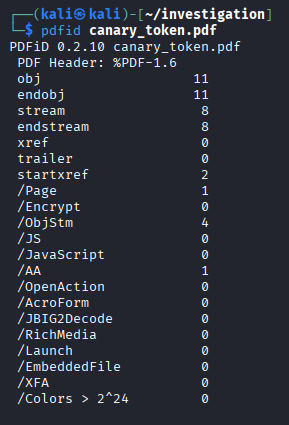
As expected, there is an /AA element which is an AutoAction-element, which can be triggered on opening. So to find out where it exactly is, we again can use another pdf tool called pdf-parser.py:
python3 pdf-parser.py canary_token.pdfNow we search in the output for the obj which contains the /AA tag and find it at obj 13:

It shows, that it’s referencing to an object with /O, and in this case it’s object 16. Unfortunately, the output doesn’t give us an object 16 so it has to be hidden in some stream in another object. This looks like this:

There is 8 streams in the file regarding the pdfid output so we can just extract them all, one by one, using the command (where -o marks the object number):
pdf-parser -o 14 --filter --raw -d object_14.out canary_token.pdfI’m working directly on this object because I know already that it’s in this object, but while finding out I extracted every stream and took a look at all of them.
After extracting the object it can be cat-ed and the content be looked at:
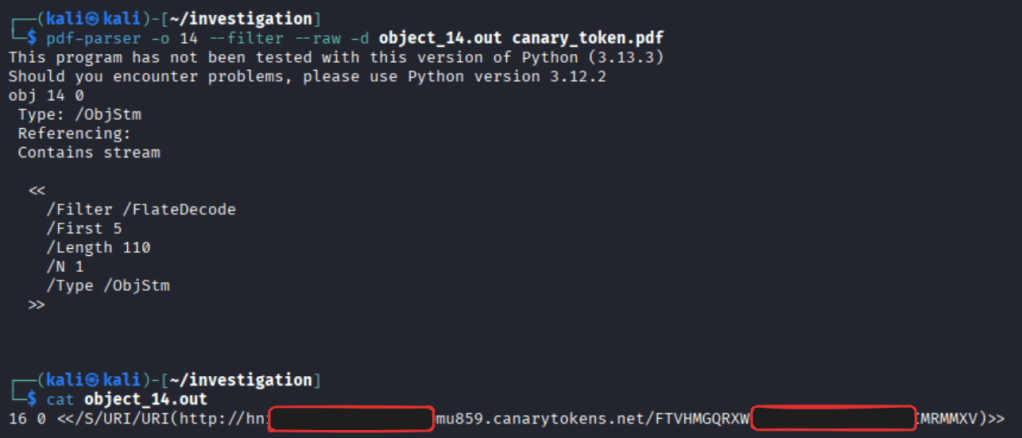
We can see, there is object 16 at the beginning of the line and after that follows the /S options which means, that when this object is called it navigates to the URI following after.
Also visible is the link it calls, which I made unreadable not to get spammed by some funny person one day 😉
So, let’s go. I opened the PDF and waited for the mail… nothing happened… perfect, that’s unexpected and quiet disappointing. I tried opening it in different readers and different OS’s and even with a VPN to another location to see if it’s intelligent when opened from same IP-Address as it was created from, but it didn’t work at all. I can’t really explain why that is, except that the PDF-readers took actions against these AutoAction objects which don’t get triggered by default…
But to still be able to show you how it would look, I just navigated to the URI found in the output of the command shown above:
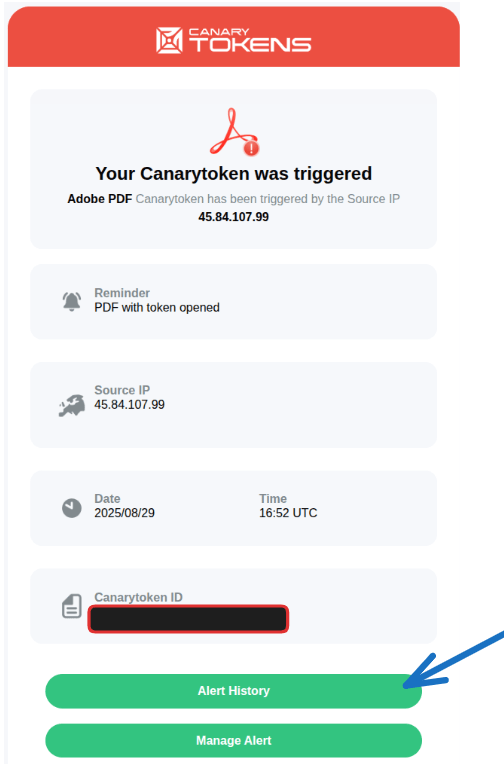
That worked, and the picture above shows how its looking. It shows that it has been triggered, at what time and from which IP-Address. If you follow from there the link to “Alert history” you get a clear idea, where the document has been opened:
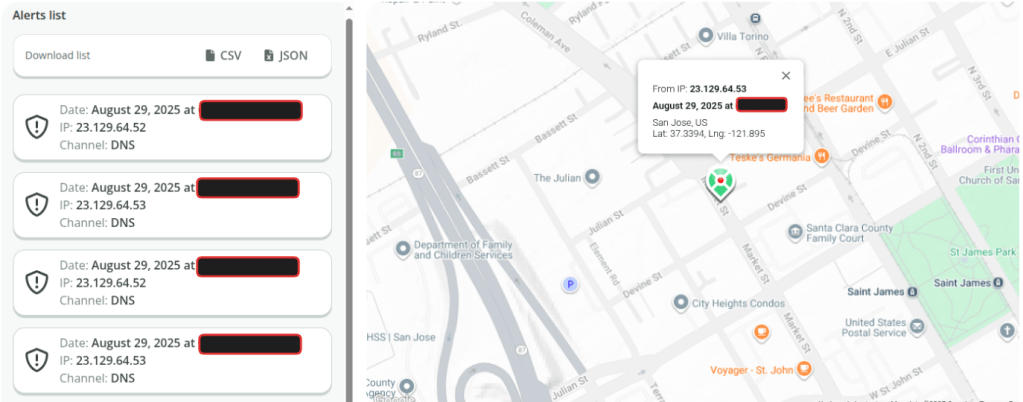
What’s important to say is, that the location of opening is not exactly, where the person was, but more the location your public IP-Address is exposed to the WWW. In case the document is opened using a VPN it’s the exit node of the VPN provider or your ISP’s exit node if you’re just connected to the internet directly.
Investigating the word document
As many probably know already, is a word document a zip file so it can be opened using unzip command in linux bash:
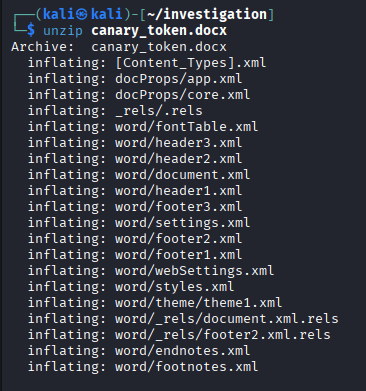
Now we need to find out, how this is going to trigger the token and where it is hidden.
I first started with going into the word directory and there I searched for a file, which has the word ‘canary’ in it:
cat * | grep -rl canaryThis showed the file footer2.xml so we see what’s in there:

So the block we see here is following:
<w:instrText xml:space="preserve">
  INCLUDEPICTURE "http://canarytokens.com/traffic/tags/feedback/3......................2k/contact.php" \d  \* MERGEFORMAT
</w:instrText>
This does the following:
INCLUDEPICTUREis a Word field code that tells Word to pull an image from a file or URL.- The URL points to a Canarytoken endpoint.
- When Word tries to render the footer, it attempts to fetch the image from that URL.
- That HTTP request is what alerts the token server.
That was easier than pdf document, wasn’t it?!
Also, there is a lot of other types, in which these tokens can be embedded and I recommend checking it out.
Conclusion
It’s a cool thing also for environments which, for whatever reason, can’t be monitored with other Tools like EDR or where you have very little visibility into. The messaging is really fast, if the token triggers.
As always in defense, it’s important to test the tools you’re using and just depositing a document at a certain spot, without trying to trigger it to see if it works, isn’t enough! Know your tools and reactions in case something alerts!
Thanks for reading and I hope it helps someone which is maybe trying to find out how it works, or where it could be used.
Seeya and stay safe!
R4ruk
 Sidequest Lab